
目录
还在为每个控件手写事件处理代码而头疼吗?还在用textBox1.Text = user.Name这样的方式更新界面吗?如果你正从WinForm向WPF转型,那么数据绑定将是你遇到的第一个重大思维转变。
在WinForm中,我们习惯了命令式编程:告诉程序"怎么做";而在WPF中,数据绑定让我们转向声明式编程:告诉程序"做什么"。这不仅仅是语法的改变,更是开发思维的根本性转变。本文将带你从零开始理解WPF数据绑定的核心概念,让你的界面开发从此告别繁琐的手工代码。
💡 WinForm vs WPF:数据展示方式的根本差异
🔍 WinForm的痛点分析
在WinForm中,我们通常这样处理数据展示:
c#// WinForm中的传统做法
public partial class FrmUser : Form
{
    private User currentUser;

    public void DisplayUser(User user)
    {
        currentUser = user;
        textBoxName.Text = user.Name;
        textBoxEmail.Text = user.Email;
        textBoxAge.Text = user.Age.ToString();

        // 如果数据变化,需要手动更新,实际winform业务中我基本不这么做,费不了这事
        user.PropertyChanged += (s, e) =>
        {
            switch(e.PropertyName)
            {
                case "Name":
                    textBoxName.Text = user.Name;
                    break;
                case "Email":
                    textBoxEmail.Text = user.Email;
                    break;
                // ... 更多重复代码
            }
        };
    }

    private void textBoxName_TextChanged(object sender, EventArgs e)
    {
        // 反向更新数据
        currentUser.Name = textBoxName.Text;
    }
}
问题显而易见:
- 大量重复的赋值代码
- 双向同步需要手写事件处理
- 界面逻辑与业务逻辑耦合严重
- 维护成本高,容易出错
Winform在属性绑定上是先天不足的。
✨ WPF数据绑定的优雅解决方案
让我们看看WPF是如何优雅地解决这个问题的:
xml<!-- WPF中的XAML -->
<Grid>
    <StackPanel Margin="20">
        <TextBox Text="{Binding Name, Mode=TwoWay}" />
        <TextBox Text="{Binding Email, Mode=TwoWay}" />
        <TextBox Text="{Binding Age, Mode=TwoWay}" />
    </StackPanel>
</Grid>
c#using System;
using System.Collections.Generic;
using System.ComponentModel;
using System.Linq;
using System.Runtime.CompilerServices;
using System.Text;
using System.Threading.Tasks;

namespace AppDataBind
{
    public class User : INotifyPropertyChanged
    {
        private string _name;
        public string Name
        {
            get => _name;
            set { _name = value; OnPropertyChanged(); }
        }

        private string _email;
        public string Email
        {
            get => _email;
            set { _email = value; OnPropertyChanged(); }
        }

        private int _age;
        public int Age
        {
            get => _age;
            set { _age = value; OnPropertyChanged(); }
        }

        public event PropertyChangedEventHandler PropertyChanged;
        protected void OnPropertyChanged([CallerMemberName] string name = null)
        {
            PropertyChanged?.Invoke(this, new PropertyChangedEventArgs(name));
        }
    }
}
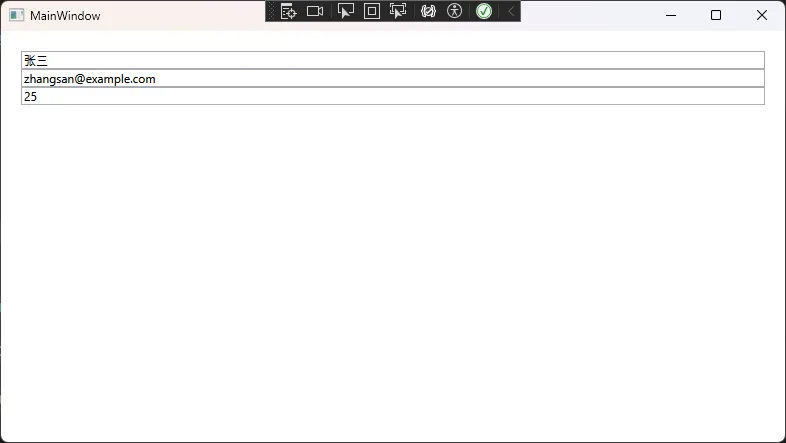
立即看到的好处:
- XAML中一行代码搞定双向绑定
- 数据变更自动同步到界面
- 界面变更自动同步到数据
- 代码简洁,逻辑清晰
🔥 数据绑定的核心概念深度解析
📊 1. 绑定表达式语法详解
xml<Window x:Class="AppDataBind.Window1"
        xmlns="http://schemas.microsoft.com/winfx/2006/xaml/presentation"
        xmlns:x="http://schemas.microsoft.com/winfx/2006/xaml"
        xmlns:d="http://schemas.microsoft.com/expression/blend/2008"
        xmlns:mc="http://schemas.openxmlformats.org/markup-compatibility/2006"
        xmlns:local="clr-namespace:AppDataBind"
        mc:Ignorable="d"
        Title="音量控制面板" Height="600" Width="900"
        Background="#F5F5F5"
        WindowStartupLocation="CenterScreen">

    <Window.Resources>
        <Style x:Key="TitleTextStyle" TargetType="TextBlock">
            <Setter Property="FontSize" Value="24"/>
            <Setter Property="FontWeight" Value="Bold"/>
            <Setter Property="Foreground" Value="#2C3E50"/>
            <Setter Property="Margin" Value="0,0,0,20"/>
        </Style>

        <Style x:Key="LabelTextStyle" TargetType="TextBlock">
            <Setter Property="FontSize" Value="14"/>
            <Setter Property="Foreground" Value="#34495E"/>
            <Setter Property="Margin" Value="0,0,0,10"/>
        </Style>

        <Style x:Key="ValueTextStyle" TargetType="TextBlock">
            <Setter Property="FontSize" Value="18"/>
            <Setter Property="FontWeight" Value="Bold"/>
            <Setter Property="Foreground" Value="#3498DB"/>
            <Setter Property="Margin" Value="0,8,0,0"/>
        </Style>
    </Window.Resources>

    <StackPanel Margin="40" VerticalAlignment="Top">
        <TextBlock Text="🔊 音量控制面板" Style="{StaticResource TitleTextStyle}"/>
        <Border Background="White" CornerRadius="10" Padding="30"
                BorderBrush="#E0E0E0" BorderThickness="1" Margin="0,0,0,20">
            <StackPanel>
                <TextBlock Text="音量调节" Style="{StaticResource LabelTextStyle}"/>
                <Border Background="#ECEFF1" CornerRadius="8" Padding="15" Margin="0,0,0,15">
                    <StackPanel>
                        <Slider x:Name="VolumeSlider"
                                Minimum="0"
                                Maximum="100"
                                Value="50"
                                TickFrequency="10"
                                IsSnapToTickEnabled="True"
                                Height="40"
                                Margin="0,0,0,10"
                                Foreground="#3498DB"/>

                        <StackPanel Orientation="Horizontal" HorizontalAlignment="Center">
                            <TextBlock Text="0" Width="40" TextAlignment="Left" FontSize="11" Foreground="#7F8C8D"/>
                            <TextBlock Text="25" Width="40" TextAlignment="Center" FontSize="11" Foreground="#7F8C8D"/>
                            <TextBlock Text="50" Width="40" TextAlignment="Center" FontSize="11" Foreground="#7F8C8D"/>
                            <TextBlock Text="75" Width="40" TextAlignment="Center" FontSize="11" Foreground="#7F8C8D"/>
                            <TextBlock Text="100" Width="40" TextAlignment="Right" FontSize="11" Foreground="#7F8C8D"/>
                        </StackPanel>
                    </StackPanel>
                </Border>

                <TextBlock Text="{Binding ElementName=VolumeSlider, Path=Value, StringFormat=当前音量:{0:F0}%}"
                           Style="{StaticResource ValueTextStyle}"/>

                <StackPanel Orientation="Horizontal" Margin="0,15,0,0">
                    <TextBlock Text="音量等级:" Style="{StaticResource LabelTextStyle}" Margin="0,0,10,0"/>
                    <TextBlock x:Name="VolumeLevel" FontSize="14" FontWeight="Bold"
                               Foreground="#27AE60"/>
                </StackPanel>

                <Separator Margin="0,20,0,20" Background="#BDC3C7" Height="2"/>

                <Grid>
                    <Grid.ColumnDefinitions>
                        <ColumnDefinition Width="*"/>
                        <ColumnDefinition Width="*"/>
                        <ColumnDefinition Width="*"/>
                    </Grid.ColumnDefinitions>

                    <StackPanel Grid.Column="0">
                        <TextBlock Text="最小值" Style="{StaticResource LabelTextStyle}"/>
                        <TextBlock Text="{Binding ElementName=VolumeSlider, Path=Minimum}"
                                   FontSize="16" FontWeight="Bold" Foreground="#E74C3C"/>
                    </StackPanel>

                    <StackPanel Grid.Column="1" HorizontalAlignment="Center">
                        <TextBlock Text="当前值" Style="{StaticResource LabelTextStyle}" HorizontalAlignment="Center"/>
                        <TextBlock Text="{Binding ElementName=VolumeSlider, Path=Value, StringFormat={}{0:F0}}"
                    FontSize="16" FontWeight="Bold" Foreground="#3498DB" HorizontalAlignment="Center"/>
                    </StackPanel>

                    <StackPanel Grid.Column="2" HorizontalAlignment="Right">
                        <TextBlock Text="最大值" Style="{StaticResource LabelTextStyle}" HorizontalAlignment="Right"/>
                        <TextBlock Text="{Binding ElementName=VolumeSlider, Path=Maximum}"
                                   FontSize="16" FontWeight="Bold" Foreground="#27AE60" HorizontalAlignment="Right"/>
                    </StackPanel>
                </Grid>

                <StackPanel Orientation="Horizontal" Margin="0,20,0,0" Height="40">
                    <Button Content="静音" Width="100" Margin="0,0,10,0"
                            Click="MuteButton_Click" Background="#E74C3C" Foreground="White"
                            FontSize="12" FontWeight="Bold"/>
                    <Button Content="重置为50%" Width="120" Margin="0,0,10,0"
                            Click="ResetButton_Click" Background="#3498DB" Foreground="White"
                            FontSize="12" FontWeight="Bold"/>
                    <Button Content="最大音量" Width="100"
                            Click="MaxButton_Click" Background="#27AE60" Foreground="White"
                            FontSize="12" FontWeight="Bold"/>
                </StackPanel>

                <TextBlock Text="音量调节历史" Style="{StaticResource LabelTextStyle}" Margin="0,20,0,10"/>
                <ListBox x:Name="VolumeHistory" Height="100" Background="#F8F9FA"
                         BorderBrush="#BDC3C7" BorderThickness="1" Padding="10"/>
            </StackPanel>
        </Border>
    </StackPanel>
</Window>
c#using System;
using System.Windows;
using System.Windows.Controls;

namespace AppDataBind
{
    public partial class Window1 : Window
    {
        private double _previousVolume = 50;

        public Window1()
        {
            InitializeComponent();
            VolumeSlider.ValueChanged += VolumeSlider_ValueChanged;
            UpdateVolumeLevel();
            VolumeHistory.Items.Add($"[{DateTime.Now:HH:mm:ss}] 初始音量:50%");
        }
        private void VolumeSlider_ValueChanged(object sender, RoutedPropertyChangedEventArgs<double> e)
        {
            UpdateVolumeLevel();
            AddToHistory();
        }

        private void UpdateVolumeLevel()
        {
            double volume = VolumeSlider.Value;
            string level;

            if (volume == 0)
                level = "🔇 已静音";
            else if (volume < 30)
                level = "🔈 低音量";
            else if (volume < 70)
                level = "🔉 中等音量";
            else
                level = "🔊 高音量";

            VolumeLevel.Text = level;
        }
        private void AddToHistory()
        {
            string record = $"[{DateTime.Now:HH:mm:ss}] 音量:{VolumeSlider.Value:F0}%";

            if (VolumeHistory.Items.Count > 10)
                VolumeHistory.Items.RemoveAt(0);

            VolumeHistory.Items.Add(record);
            VolumeHistory.ScrollIntoView(VolumeHistory.Items[VolumeHistory.Items.Count - 1]);
        }

        private void MuteButton_Click(object sender, RoutedEventArgs e)
        {
            if (VolumeSlider.Value > 0)
            {
                _previousVolume = VolumeSlider.Value;
                VolumeSlider.Value = 0;
            }
            else
            {
                VolumeSlider.Value = _previousVolume;
            }
        }

        private void ResetButton_Click(object sender, RoutedEventArgs e)
        {
            VolumeSlider.Value = 50;
        }
        private void MaxButton_Click(object sender, RoutedEventArgs e)
        {
            VolumeSlider.Value = 100;
        }
    }
}
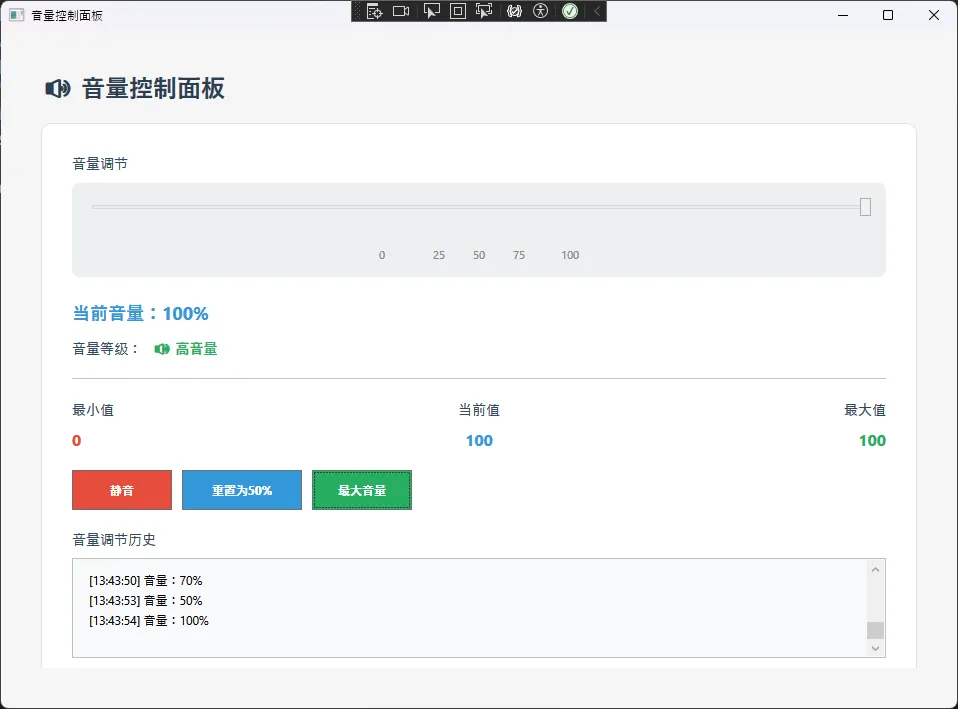
🎛️ 2. 绑定模式完全指南
c#public enum BindingMode
{
    OneWay,     // 单向:源→目标
    TwoWay,     // 双向:源↔目标
    OneTime,    // 一次性:源→目标(仅初始化时)
    OneWayToSource, // 反向:目标→源
    Default     // 使用目标属性的默认模式
}
实战示例:
xml<Window x:Class="AppDataBind.Window2"
        xmlns="http://schemas.microsoft.com/winfx/2006/xaml/presentation"
        xmlns:x="http://schemas.microsoft.com/winfx/2006/xaml"
        xmlns:d="http://schemas.microsoft.com/expression/blend/2008"
        xmlns:mc="http://schemas.openxmlformats.org/markup-compatibility/2006"
        xmlns:local="clr-namespace:AppDataBind"
        mc:Ignorable="d"
        Title="Window2" Height="450" Width="800">
    <StackPanel Margin="10">
        <TextBlock Text="WPF 数据绑定模式完整示例"
                   FontSize="20" FontWeight="Bold" Margin="0,0,0,20"/>

        <!-- OneWay:只显示数据,用户不能编辑 -->
        <Border BorderBrush="#CCCCCC" BorderThickness="1" Padding="15" Margin="0,0,0,15" Background="#F5F5F5">
            <StackPanel>
                <TextBlock Text="OneWay:只读模式" FontSize="14" FontWeight="Bold" Foreground="#0078D4"/>
                <TextBlock Text="(数据从源到目标,单向流动)" FontSize="11" Foreground="#666"/>
                <TextBlock Text="{Binding CreateTime, Mode=OneWay, StringFormat='创建时间: {0:yyyy-MM-dd HH:mm:ss}'}"
                           FontSize="12" Margin="0,10,0,0" Foreground="#333"/>
            </StackPanel>
        </Border>

        <!-- TwoWay:用户可以编辑,数据双向同步 -->
        <Border BorderBrush="#CCCCCC" BorderThickness="1" Padding="15" Margin="0,0,0,15" Background="#F5F5F5">
            <StackPanel>
                <TextBlock Text="TwoWay:双向模式" FontSize="14" FontWeight="Bold" Foreground="#0078D4"/>
                <TextBlock Text="(数据双向同步,用户编辑自动更新源)" FontSize="11" Foreground="#666"/>
                <TextBlock Text="用户名:" Margin="0,10,0,5"/>
                <TextBox Text="{Binding UserName, Mode=TwoWay, UpdateSourceTrigger=PropertyChanged}"
                         Padding="8" FontSize="12" Height="35"/>
                <TextBlock Text="{Binding UserName, StringFormat='当前输入: {0}'}"
                           FontSize="11" Margin="0,5,0,0" Foreground="#666"/>
            </StackPanel>
        </Border>

        <!-- OneTime:静态显示,性能最佳 -->
        <Border BorderBrush="#CCCCCC" BorderThickness="1" Padding="15" Margin="0,0,0,15" Background="#F5F5F5">
            <StackPanel>
                <TextBlock Text="OneTime:一次性模式" FontSize="14" FontWeight="Bold" Foreground="#0078D4"/>
                <TextBlock Text="(只在初始化时绑定一次,性能最佳)" FontSize="11" Foreground="#666"/>
                <TextBlock Text="{Binding Version, Mode=OneTime, StringFormat='版本: {0}'}"
                           FontSize="12" Margin="0,10,0,0" Foreground="#333"/>
            </StackPanel>
        </Border>

        <!-- OneWayToSource:用于输入控件更新源数据 -->
        <Border BorderBrush="#CCCCCC" BorderThickness="1" Padding="15" Margin="0,0,0,15" Background="#F5F5F5">
            <StackPanel>
                <TextBlock Text="OneWayToSource:反向单向模式" FontSize="14" FontWeight="Bold" Foreground="#0078D4"/>
                <TextBlock Text="(数据从目标到源,目标修改更新源)" FontSize="11" Foreground="#666"/>
                <TextBlock Text="音量控制:" Margin="0,10,0,5"/>
                <Slider Value="{Binding Volume, Mode=OneWayToSource, UpdateSourceTrigger=PropertyChanged}"
                        Minimum="0" Maximum="100" Height="30" Margin="0,5,0,5"/>
                <TextBlock Text="{Binding Volume, StringFormat='当前音量: {0}%'}"
                           FontSize="11" Foreground="#666"/>
            </StackPanel>
        </Border>
    </StackPanel>
</Window>
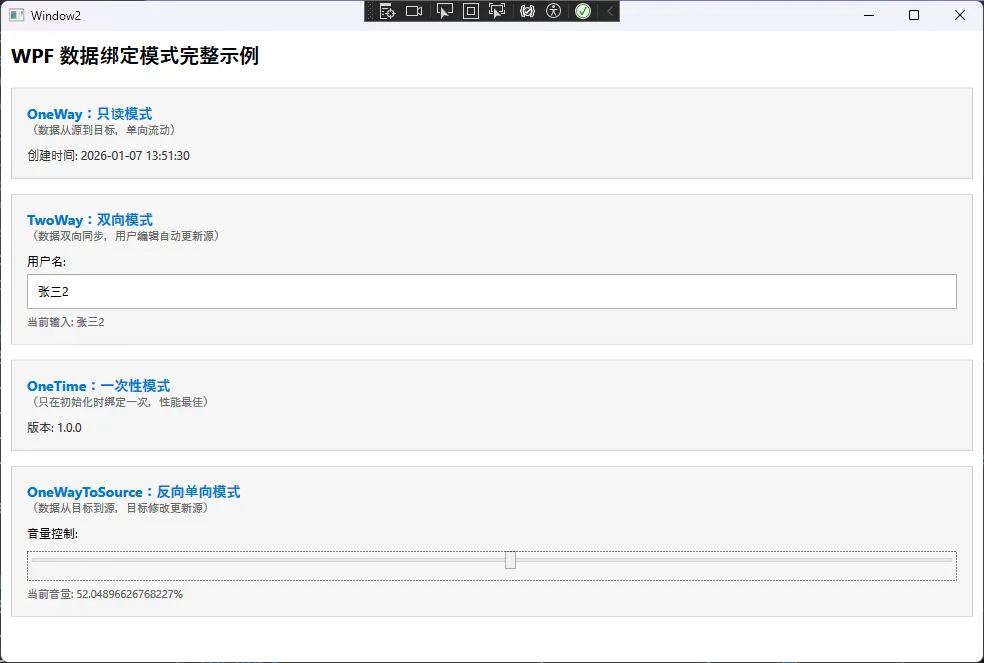
🔄 3. 值转换器:数据的"翻译官"
当数据类型与显示需求不匹配时,值转换器就派上用场了:
c#// 布尔值到可见性转换器
public class BoolToVisibilityConverter : IValueConverter
{
    public object Convert(object value, Type targetType, object parameter, CultureInfo culture)
    {
        if (value is bool boolValue)
            return boolValue ? Visibility.Visible : Visibility.Collapsed;
        return Visibility.Collapsed;
    }

    public object ConvertBack(object value, Type targetType, object parameter, CultureInfo culture)
    {
        return value is Visibility visibility && visibility == Visibility.Visible;
    }
}

// 年龄到描述转换器
public class AgeToDescriptionConverter : IValueConverter
{
    public object Convert(object value, Type targetType, object parameter, CultureInfo culture)
    {
        if (value is int age)
        {
            return age switch
            {
                < 18 => "未成年",
                < 60 => "成年人",
                _ => "老年人"
            };
        }
        return "未知";
    }

    public object ConvertBack(object value, Type targetType, object parameter, CultureInfo culture)
    {
        throw new NotImplementedException();
    }
}
在XAML中使用:
xml<Window x:Class="AppDataBind.Window3"
        xmlns="http://schemas.microsoft.com/winfx/2006/xaml/presentation"
        xmlns:x="http://schemas.microsoft.com/winfx/2006/xaml"
        xmlns:d="http://schemas.microsoft.com/expression/blend/2008"
        xmlns:mc="http://schemas.openxmlformats.org/markup-compatibility/2006"
        xmlns:local="clr-namespace:AppDataBind"
        mc:Ignorable="d"
        Title="Window3" Height="450" Width="800">
    <Window.Resources>
        <local:BoolToVisibilityConverter x:Key="BoolToVisConverter" />
        <local:AgeToDescriptionConverter x:Key="AgeToDescConverter" />
    </Window.Resources>

    <StackPanel Margin="20" VerticalAlignment="Top">
        <TextBlock Text="WPF 转换器完整示例" FontSize="20" FontWeight="Bold" Margin="0,0,0,20"/>

        <GroupBox Header="1. 布尔值控制可见性" Padding="10" Margin="0,0,0,20">
            <StackPanel>
                <CheckBox Content="启用编辑" IsChecked="{Binding IsEditable}" Margin="0,0,0,10"/>

                <Button Content="编辑"
                        Background="#4CAF50"
                        Foreground="White"
                        Padding="10,8"
                        Visibility="{Binding IsEditable, Converter={StaticResource BoolToVisConverter}}"
                        Click="EditButton_Click"
                        Margin="0,0,0,5"/>
            </StackPanel>
        </GroupBox>

        <GroupBox Header="2. 年龄到描述转换" Padding="10" Margin="0,0,0,20">
            <StackPanel>
                <StackPanel Orientation="Horizontal" Margin="0,0,0,10">
                    <TextBlock Text="年龄: " Width="60"/>
                    <TextBox Text="{Binding Age, UpdateSourceTrigger=PropertyChanged}"
                             Width="100" Padding="5"/>
                </StackPanel>

                <StackPanel Orientation="Horizontal">
                    <TextBlock Text="分类: " Width="60"/>
                    <TextBlock Text="{Binding Age, Converter={StaticResource AgeToDescConverter}}"
                               FontWeight="Bold"
                               Foreground="#2196F3"
                               Width="100"/>
                </StackPanel>

                <TextBlock Margin="0,10,0,0" TextWrapping="Wrap" FontSize="12" Foreground="#666">
                    <Run Text="年龄分类规则: "/>
                    <LineBreak/>
                    <Run Text="• 0-17: 未成年" Foreground="#FF9800"/>
                    <LineBreak/>
                    <Run Text="• 18-59: 成年人" Foreground="#4CAF50"/>
                    <LineBreak/>
                    <Run Text="• 60+: 老年人" Foreground="#F44336"/>
                </TextBlock>
            </StackPanel>
        </GroupBox>

        <GroupBox Header="3. 综合示例" Padding="10">
            <Grid>
                <Grid.ColumnDefinitions>
                    <ColumnDefinition Width="Auto"/>
                    <ColumnDefinition Width="*"/>
                </Grid.ColumnDefinitions>
                <Grid.RowDefinitions>
                    <RowDefinition Height="Auto"/>
                    <RowDefinition Height="Auto"/>
                </Grid.RowDefinitions>

                <TextBlock Text="姓名: " Grid.Row="0" Grid.Column="0" VerticalAlignment="Center"/>
                <TextBlock Text="{Binding Name}" Grid.Row="0" Grid.Column="1"
                           Margin="10,0" VerticalAlignment="Center"/>

                <TextBlock Text="状态: " Grid.Row="1" Grid.Column="0" VerticalAlignment="Center" Margin="0,10,0,0"/>
                <TextBlock Text="{Binding Age, Converter={StaticResource AgeToDescConverter}}"
                           Grid.Row="1" Grid.Column="1"
                           Margin="10,10,0,0"
                           Foreground="#2196F3"
                           FontWeight="Bold"/>
            </Grid>
        </GroupBox>
    </StackPanel>
</Window>
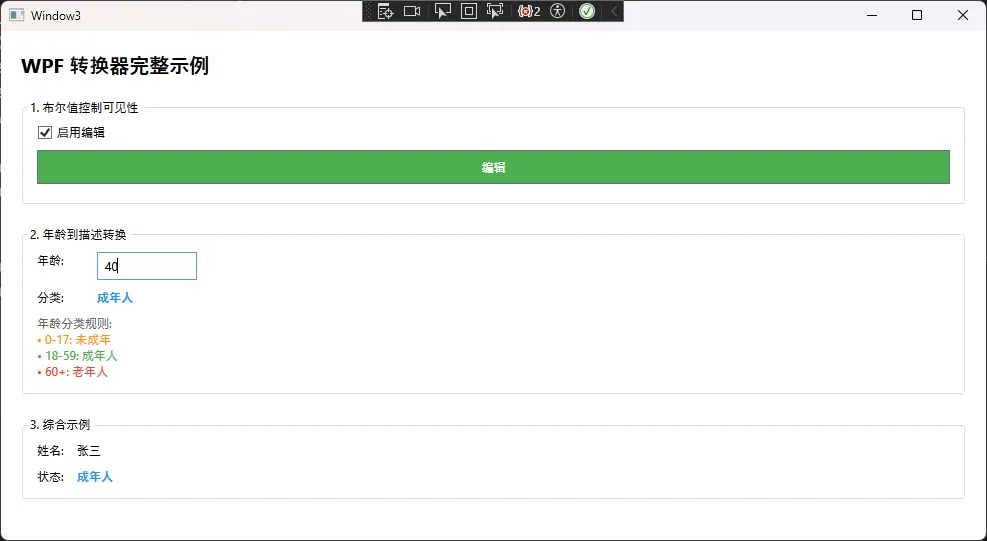
📈 高级数据绑定实战场景
🗂️ 1. 集合绑定:列表数据的完美展示
c#using System;
using System.Collections.Generic;
using System.Collections.ObjectModel;
using System.ComponentModel;
using System.Linq;
using System.Runtime.CompilerServices;
using System.Text;
using System.Threading.Tasks;
using System.Windows;
using System.Windows.Input;

namespace AppDataBind
{
    public class UserListViewModel : INotifyPropertyChanged
    {
        private ObservableCollection<User> _users;
        public ObservableCollection<User> Users
        {
            get => _users;
            set { _users = value; OnPropertyChanged(); }
        }

        private User _selectedUser;
        public User SelectedUser
        {
            get => _selectedUser;
            set { _selectedUser = value; OnPropertyChanged(); }
        }

        public ICommand AddUserCommand { get; }
        public ICommand DeleteUserCommand { get; }
        public ICommand SaveUserCommand { get; }

        public UserListViewModel()
        {
            Users = new ObservableCollection<User>
            {
                new User { Name = "张三", Age = 25, Email = "zhangsan@example.com" },
                new User { Name = "李四", Age = 30, Email = "lisi@example.com" },
                new User { Name = "王五", Age = 28, Email = "wangwu@example.com" }
            };

            // 初始化命令
            AddUserCommand = new RelayCommand(_ => AddUser());
            DeleteUserCommand = new RelayCommand(_ => DeleteUser(), _ => SelectedUser != null);
            SaveUserCommand = new RelayCommand(_ => SaveUser());
        }

        private void AddUser()
        {
            var newUser = new User { Name = "新用户", Age = 0, Email = "" };
            Users.Add(newUser);
            SelectedUser = newUser;
        }

        private void DeleteUser()
        {
            if (SelectedUser != null)
            {
                Users.Remove(SelectedUser);
                SelectedUser = null;
            }
        }

        private void SaveUser()
        {
            // 这里可以添加保存逻辑,例如数据库操作
            MessageBox.Show("用户信息已保存!");
        }

        public event PropertyChangedEventHandler PropertyChanged;

        protected void OnPropertyChanged([CallerMemberName] string name = null)
        {
            PropertyChanged?.Invoke(this, new PropertyChangedEventArgs(name));
        }
    }
}
xml<Window x:Class="AppDataBind.Window4"
        xmlns="http://schemas.microsoft.com/winfx/2006/xaml/presentation"
        xmlns:x="http://schemas.microsoft.com/winfx/2006/xaml"
        xmlns:d="http://schemas.microsoft.com/expression/blend/2008"
        xmlns:mc="http://schemas.openxmlformats.org/markup-compatibility/2006"
        xmlns:local="clr-namespace:AppDataBind"
        mc:Ignorable="d"
        Title="Window4" Height="450" Width="800">
    <Window.Resources>
        <Style TargetType="TextBox">
            <Setter Property="Margin" Value="0,5"/>
            <Setter Property="Padding" Value="8"/>
            <Setter Property="Height" Value="35"/>
            <Setter Property="VerticalAlignment" Value="Top"/>
        </Style>
        <Style TargetType="Label">
            <Setter Property="FontSize" Value="14"/>
            <Setter Property="Margin" Value="0,10,0,0"/>
        </Style>
    </Window.Resources>

    <Grid>
        <Grid.ColumnDefinitions>
            <ColumnDefinition Width="300"/>
            <ColumnDefinition Width="*"/>
        </Grid.ColumnDefinitions>

        <StackPanel Grid.Column="0" Background="White">
            <Label Content="用户列表" FontSize="16" FontWeight="Bold" Margin="10"/>

            <ListBox Grid.Column="0"
                     ItemsSource="{Binding Users}"
                     SelectedItem="{Binding SelectedUser}"
                     DisplayMemberPath="Name"
                     Margin="10,0,10,10"
                     Height="300"
                     BorderThickness="1"
                     BorderBrush="#E0E0E0"/>

            <StackPanel Orientation="Horizontal" Margin="10" HorizontalAlignment="Center">
                <Button Content="添加"
                        Command="{Binding AddUserCommand}"
                        Width="80" Height="35" Margin="5"/>
                <Button Content="删除"
                        Command="{Binding DeleteUserCommand}"
                        Width="80" Height="35" Margin="5"/>
            </StackPanel>
        </StackPanel>

        <StackPanel Grid.Column="1" Margin="20" DataContext="{Binding SelectedUser}">
            <Label Content="用户详细信息" FontSize="16" FontWeight="Bold"/>

            <Label Content="姓名"/>
            <TextBox Text="{Binding Name, Mode=TwoWay, UpdateSourceTrigger=PropertyChanged}"
                     Foreground="Black"/>

            <Label Content="年龄"/>
            <TextBox Text="{Binding Age, Mode=TwoWay, UpdateSourceTrigger=PropertyChanged}"
                     Foreground="Black"/>

            <Label Content="邮箱"/>
            <TextBox Text="{Binding Email, Mode=TwoWay, UpdateSourceTrigger=PropertyChanged}"
                     Foreground="Black"/>

            <StackPanel Orientation="Horizontal" Margin="0,20,0,0">
                <Button Content="保存"
                        Command="{Binding DataContext.SaveUserCommand, RelativeSource={RelativeSource AncestorType=Window}}"
                        Width="100" Height="40"/>
            </StackPanel>
        </StackPanel>
    </Grid>
</Window>
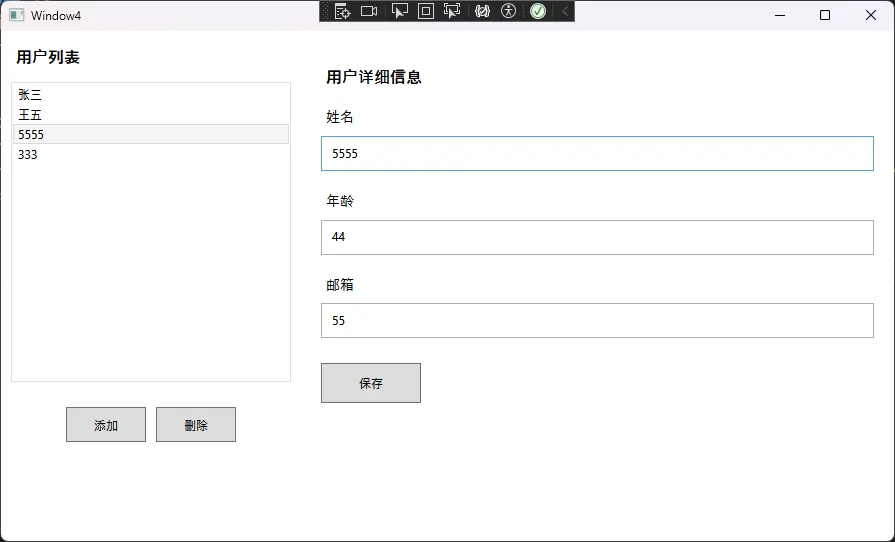
⚠️ 常见坑点:
- 使用
ObservableCollection而不是List,否则界面不会自动更新 - 绑定集合项的属性时,确保项目类实现了
INotifyPropertyChanged
🎨 2. 数据模板:自定义数据展示
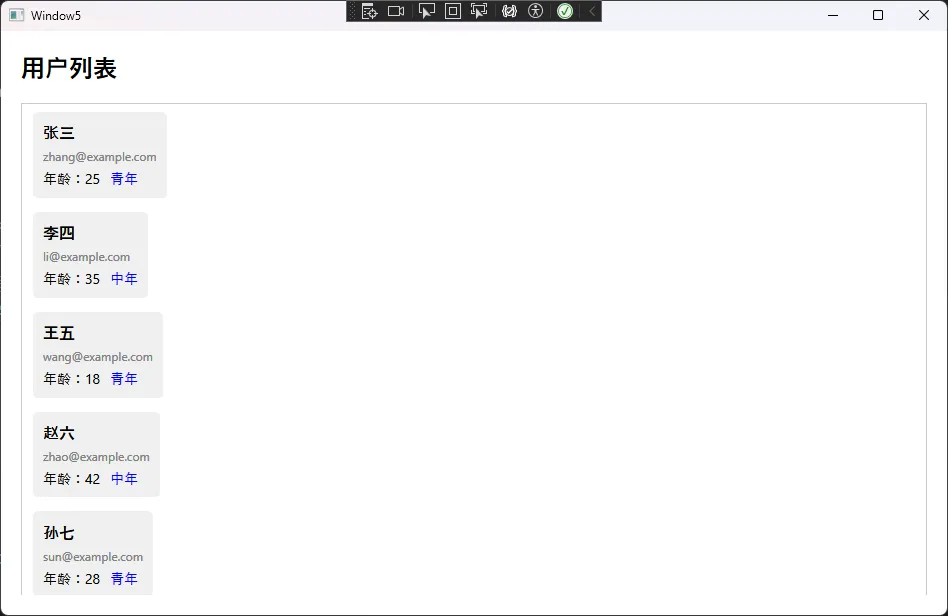
xml<Window x:Class="AppDataBind.Window5"
        xmlns="http://schemas.microsoft.com/winfx/2006/xaml/presentation"
        xmlns:x="http://schemas.microsoft.com/winfx/2006/xaml"
        xmlns:d="http://schemas.microsoft.com/expression/blend/2008"
        xmlns:mc="http://schemas.openxmlformats.org/markup-compatibility/2006"
        xmlns:local="clr-namespace:AppDataBind"
        mc:Ignorable="d"
        Title="Window5" Height="450" Width="800">
    <Window.Resources>
        <local:AgeToDescConverter x:Key="AgeToDescConverter"/>
        <DataTemplate x:Key="UserTemplate">
            <Border Background="#F0F0F0" CornerRadius="5" Padding="10" Margin="5">
                <StackPanel>
                    <TextBlock Text="{Binding Name}"
                               FontWeight="Bold"
                               FontSize="16"
                               Margin="0,0,0,5"/>
                    <TextBlock Text="{Binding Email}"
                               Foreground="Gray"
                               Margin="0,0,0,5"/>
                    <StackPanel Orientation="Horizontal">
                        <TextBlock Text="年龄:" FontSize="14"/>
                        <TextBlock Text="{Binding Age}" FontSize="14"/>
                        <TextBlock Text="{Binding Age, Converter={StaticResource AgeToDescConverter}}"
                                   Foreground="Blue"
                                   Margin="10,0,0,0"
                                   FontSize="14"/>
                    </StackPanel>
                </StackPanel>
            </Border>
        </DataTemplate>
    </Window.Resources>

    <Grid>
        <StackPanel Orientation="Vertical" Margin="20">
            <TextBlock Text="用户列表"
                       FontSize="24"
                       FontWeight="Bold"
                       Margin="0,0,0,20"/>
            <ListBox ItemsSource="{Binding Users}"
                     ItemTemplate="{StaticResource UserTemplate}"
                     BorderBrush="#CCCCCC"
                     BorderThickness="1"
                   />
        </StackPanel>
    </Grid>
</Window>
🔍 3. 多重绑定:组合多个数据源
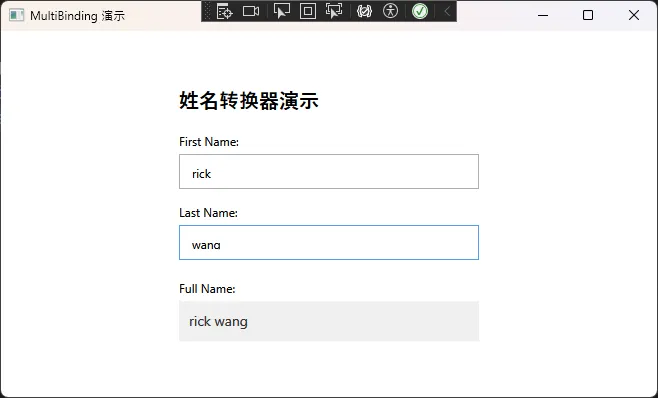
c#public class FullNameConverter : IMultiValueConverter
{
    public object Convert(object[] values, Type targetType, object parameter, CultureInfo culture)
    {
        if (values.Length >= 2 && values[0] is string firstName && values[1] is string lastName)
        {
            return $"{firstName} {lastName}";
        }
        return string.Empty;
    }

    public object[] ConvertBack(object value, Type[] targetTypes, object parameter, CultureInfo culture)
    {
        throw new NotImplementedException();
    }
}
xml<Window x:Class="AppDataBind.Window6"
        xmlns="http://schemas.microsoft.com/winfx/2006/xaml/presentation"
        xmlns:x="http://schemas.microsoft.com/winfx/2006/xaml"
        xmlns:d="http://schemas.microsoft.com/expression/blend/2008"
        xmlns:mc="http://schemas.openxmlformats.org/markup-compatibility/2006"
        xmlns:local="clr-namespace:AppDataBind"
        mc:Ignorable="d"
        Title="MultiBinding 演示"
        Height="300"
        Width="600"
        WindowStartupLocation="CenterScreen">

    <Window.Resources>
        <local:FullNameConverter x:Key="FullNameConverter"/>
    </Window.Resources>

    <StackPanel VerticalAlignment="Center" HorizontalAlignment="Center" Width="300">
        <TextBlock Text="姓名转换器演示" FontSize="20" FontWeight="Bold" Margin="0,0,0,20"/>
        <TextBlock Text="First Name:" Margin="0,0,0,5"/>
        <TextBox x:Name="FirstNameTextBox" Height="35" Padding="10" Margin="0,0,0,15"/>

        <TextBlock Text="Last Name:" Margin="0,0,0,5"/>
        <TextBox x:Name="LastNameTextBox" Height="35" Padding="10" Margin="0,0,0,20"/>

        <TextBlock Text="Full Name:" Margin="0,0,0,5"/>
        <TextBlock Height="40"
                   Background="#F0F0F0"
                   Padding="10"
                   VerticalAlignment="Center"
                   FontSize="14"
                   Foreground="#333">
            <TextBlock.Text>
                <MultiBinding Converter="{StaticResource FullNameConverter}">
                    <Binding ElementName="FirstNameTextBox" Path="Text"/>
                    <Binding ElementName="LastNameTextBox" Path="Text"/>
                </MultiBinding>
            </TextBlock.Text>
        </TextBlock>
    </StackPanel>
</Window>
🎉 总结:拥抱数据绑定的新世界
通过本文的深入讲解,相信你已经对WPF数据绑定有了全面的认识。让我们回顾三个核心要点:
🔑 核心要点1:思维转换
从WinForm的命令式编程转向WPF的声明式编程,让数据自动驱动界面更新,告别手工同步代码。
🔑 核心要点2:技术掌握
熟练掌握绑定语法、绑定模式、值转换器等核心技术,能够应对90%的实际开发场景。
🔑 核心要点3:最佳实践
遵循MVVM模式,注重性能优化和内存管理,编写可维护的高质量代码。
数据绑定不仅仅是WPF的一个功能特性,更是一种全新的开发范式。掌握了它,你的WPF开发效率将得到质的飞跃。从今天开始,让数据绑定成为你WPF开发的得力助手吧!
💬 互动时刻
- 你在从WinForm转WPF的过程中,遇到了哪些数据绑定的难点?
- 在实际项目中,你是如何平衡绑定的便利性和性能要求的?
💡 金句总结
- "数据绑定让界面开发从体力活变成了脑力活"
- "好的绑定设计让代码自解释,坏的绑定设计让人看不懂"
- "MVVM不是银弹,但数据绑定确实是WPF的灵魂"
觉得这篇文章对你有帮助?请转发给更多正在学习WPF的同行,让更多开发者受益!关注我们,获取更多C#开发实战技巧。
本文作者:技术老小子
本文链接:
版权声明:本博客所有文章除特别声明外,均采用 BY-NC-SA 许可协议。转载请注明出处!