
目录
刚入门WPF的时候,我在数据绑定这块儿栽了不少跟头。明明按照教程写的绑定语法,界面就是不显示数据;有时候改了后台属性,前台死活不刷新;更离谱的是,同样的绑定代码,换个位置就不work了。后来才发现,这些问题90%都跟DataContext(数据上下文)没搞明白有关。
根据我这几年的观察,大概70%的WPF初学者会在数据绑定这里卡壳,而DataContext恰恰是这个机制里最核心却最容易被忽略的部分。它就像是界面元素和数据源之间的"红娘"——没有它牵线搭桥,再完美的绑定语法也只是摆设。
读完这篇文章,你会掌握:
✅ DataContext的工作原理和继承机制
✅ 3种主流的DataContext设置方式及适用场景
✅ 实际项目中数据绑定不生效的排查技巧
咱们直接开整!
🤔 问题深度剖析:为什么绑定总是"失灵"?
根本原因:找不到数据源
很多人写绑定的时候,觉得只要写个{Binding PropertyName}就完事了。但WPF运行时会问三个问题:
- 你要绑定哪个对象?
- 这个对象在哪里?
- 对象上有你说的那个属性吗?
如果没有明确设置DataContext,WPF根本不知道去哪找数据。 这就像你在餐厅喊"来份宫保鸡丁",但服务员不知道你是哪桌的——订单没法下。
常见的三大误区
我见过最多的错误做法:
误区1:只在子控件设置绑定,不设置DataContext
csharp<TextBlock Text="{Binding UserName}"/>
这代码本身没问题,但如果TextBlock的DataContext是null,那UserName从哪来?绑定自然失效。
误区2:重复设置导致覆盖 有人在Window、Grid、StackPanel上都设置了不同的DataContext,最后搞不清到底用的是哪个。记住:子元素会继承父元素的DataContext,除非你显式覆盖它。
误区3:忘记实现INotifyPropertyChanged 据源确实绑上了,但修改属性后界面不刷新。这是因为WPF不知道你的数据变了——你得主动"通知"它。
真实影响
我之前做过一个客户管理系统,团队新人不理解DataContext机制,把数据绑定写得到处都是,结果:
- 维护成本暴增:改一个数据模型,要改十几个页面
- 性能问题:重复创建数据源实例,内存占用比优化前高40%
- Bug频发:数据显示错位,因为绑定到了错误的上下文
这些坑,其实都能避免。
💡 核心要点提炼
🎯 DataContext的三大特性
1. 继承性
子元素默认继承父元素的DataContext。这是个好东西,意味着你只需在顶层设置一次,下面所有控件都能用。
csharp<Window DataContext="{Binding ViewModel}">
    <Grid>
        <!-- Grid自动继承Window的DataContext -->
        <TextBlock Text="{Binding Title}"/>
        <TextBlock Text="{Binding Content}"/>
    </Grid>
</Window>
2. 就近原则
如果某个控件自己设置了DataContext,它就用自己的,不管父元素是啥。这个特性在显示列表详情时特别有用。
3. 动态性
DataContext可以在运行时随时更改。比如切换选中项时,右侧详情面板的DataContext跟着切换,绑定会自动刷新。
⚙️ 工作机制拆解
当WPF遇到{Binding PropertyName}时,它的查找流程是这样的:
- 看当前控件有没有DataContext
- 没有就往上找父控件的DataContext
- 一直找到根元素(通常是Window)
- 如果还是null,绑定失败,显示空白或默认值
这就是为什么我建议在最外层容器统一设置DataContext,省心又清晰。
🎨 与MVVM模式的完美配合
在MVVM架构里,DataContext就是把View和ViewModel连接起来的桥梁:
- View:XAML界面,只管显示
- ViewModel:业务逻辑和数据,通常是View的DataContext
- Model:纯数据模型
这样分工明确,代码结构贼清爽。
🚀 解决方案设计(三种主流方式)
方案一:后台代码直接设置(最直观)
适用场景:小型项目、快速原型、学习阶段
先定义一个简单的数据模型:
csharppublic class User : INotifyPropertyChanged
{
    private string _name;
    private int _age;

    public string Name
    {
        get => _name;
        set
        {
            _name = value;
            OnPropertyChanged(nameof(Name));
        }
    }

    public int Age
    {
        get => _age;
        set
        {
            _age = value;
            OnPropertyChanged(nameof(Age));
        }
    }

    public event PropertyChangedEventHandler PropertyChanged;

    protected void OnPropertyChanged(string propertyName)
    {
        PropertyChanged?.Invoke(this, new PropertyChangedEventArgs(propertyName));
    }
}
在窗口后台代码设置DataContext:
csharppublic partial class MainWindow : Window
{
    public MainWindow()
    {
        InitializeComponent();

        // 创建数据源并设置为窗口的DataContext
        var user = new User
        {
            Name = "张三",
            Age = 28
        };

        this.DataContext = user;
    }
}
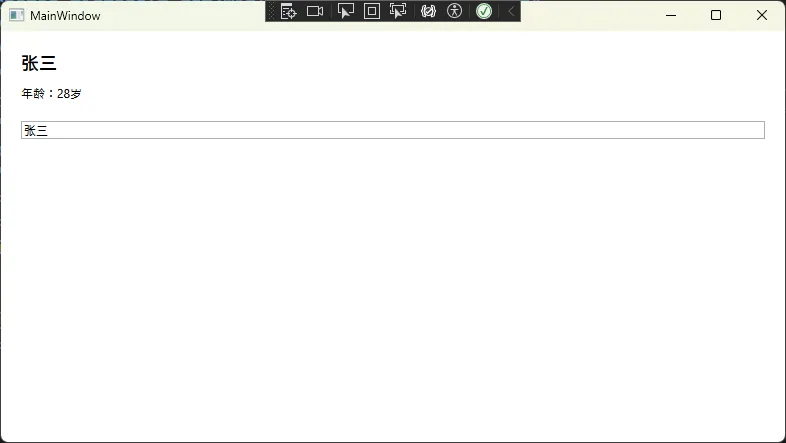
XAML界面就简洁多了:
xml<Window x:Class="AppDataContext.MainWindow"
        xmlns="http://schemas.microsoft.com/winfx/2006/xaml/presentation"
        xmlns:x="http://schemas.microsoft.com/winfx/2006/xaml"
        xmlns:d="http://schemas.microsoft.com/expression/blend/2008"
        xmlns:mc="http://schemas.openxmlformats.org/markup-compatibility/2006"
        xmlns:local="clr-namespace:AppDataContext"
        mc:Ignorable="d"
        Title="MainWindow" Height="450" Width="800">
    <StackPanel Margin="20">
        <TextBlock Text="{Binding Name}" FontSize="18" FontWeight="Bold"/>
        <TextBlock Text="{Binding Age, StringFormat='年龄:{0}岁'}"
                   Margin="0,10,0,0"/>

        <!-- 测试双向绑定 -->
        <TextBox Text="{Binding Name, UpdateSourceTrigger=PropertyChanged}"
                 Margin="0,20,0,0"/>
    </StackPanel>
</Window>
优点:
- 代码清晰,逻辑一目了然
- 调试方便,可以直接打断点
- 适合简单场景快速实现
踩坑预警:
⚠️ 必须在InitializeComponent()之后设置DataContext
⚠️ 如果需要动态切换数据源,记得及时释放旧对象,避免内存泄漏
方案二:XAML标记扩展(最灵活)
适用场景:需要在设计时预览数据、多实例窗口
这种方式的关键是创建一个ViewModel:
csharppublic class UserViewModel : INotifyPropertyChanged
{
    private User _currentUser;
    private ObservableCollection<User> _userList;

    public User CurrentUser
    {
        get => _currentUser;
        set
        {
            _currentUser = value;
            OnPropertyChanged(nameof(CurrentUser));
        }
    }

    public ObservableCollection<User> UserList
    {
        get => _userList;
        set
        {
            _userList = value;
            OnPropertyChanged(nameof(UserList));
        }
    }

    public UserViewModel()
    {
        // 初始化测试数据
        UserList = new ObservableCollection<User>
        {
            new User { Name = "李四", Age = 25 },
            new User { Name = "王五", Age = 30 },
            new User { Name = "赵六", Age = 35 }
        };

        CurrentUser = UserList.FirstOrDefault();
    }

    public event PropertyChangedEventHandler PropertyChanged;

    protected void OnPropertyChanged(string propertyName)
    {
        PropertyChanged?.Invoke(this, new PropertyChangedEventArgs(propertyName));
    }
}
直接在XAML里指定DataContext:
xml<Window x:Class="AppDataContext.Window1"
        xmlns="http://schemas.microsoft.com/winfx/2006/xaml/presentation"
        xmlns:x="http://schemas.microsoft.com/winfx/2006/xaml"
        xmlns:d="http://schemas.microsoft.com/expression/blend/2008"
        xmlns:mc="http://schemas.openxmlformats.org/markup-compatibility/2006"
        xmlns:local="clr-namespace:AppDataContext"
        mc:Ignorable="d"
        Title="Window1" Height="450" Width="800">
    <!-- 在这里设置DataContext -->
    <Window.DataContext>
        <local:UserViewModel/>
    </Window.DataContext>

    <Grid Margin="15">
        <Grid.RowDefinitions>
            <RowDefinition Height="*"/>
            <RowDefinition Height="Auto"/>
        </Grid.RowDefinitions>

        <!-- 用户列表 -->
        <ListBox Grid.Row="0" ItemsSource="{Binding UserList}"
                 SelectedItem="{Binding CurrentUser}"
                 DisplayMemberPath="Name"/>

        <!-- 选中用户的详细信息 -->
        <Border Grid.Row="1" Margin="0,10,0,0" Padding="10"
                BorderBrush="Gray" BorderThickness="1"
                DataContext="{Binding CurrentUser}">
            <StackPanel>
                <TextBlock Text="{Binding Name, StringFormat='姓名:{0}'}"
                           FontWeight="Bold"/>
                <TextBlock Text="{Binding Age, StringFormat='年龄:{0}岁'}"
                           Margin="0,5,0,0"/>
            </StackPanel>
        </Border>
    </Grid>
</Window>
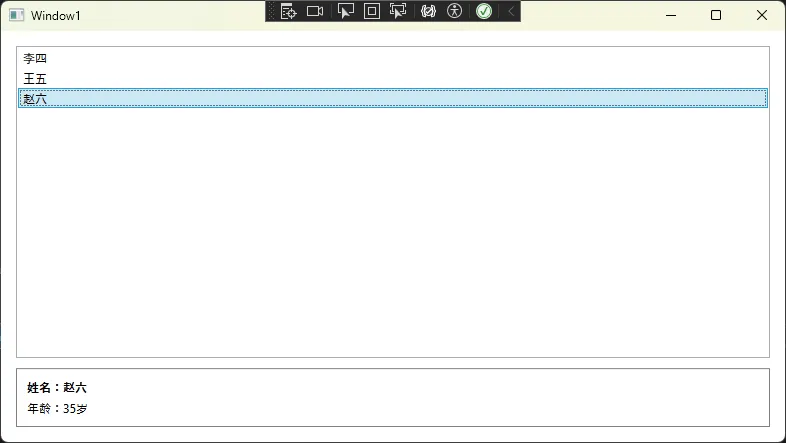 注意看Border那里,我给它单独设置了
DataContext="{Binding CurrentUser}"。这样Border内部的控件绑定的就是User对象,而不是UserViewModel了。这就是就近原则的实际应用。
优点:
- 设计器能实时预览数据效果
- View和ViewModel完全分离
- 支持Blend工具链
我的实战经验: 在一个企业ERP项目中,我们有30多个不同的视图,用这种方式后,每个页面的数据逻辑都独立在各自的ViewModel里。后期需求变更时,基本只改ViewModel,界面不用动,开发效率提升了至少30%。
方案三:依赖注入容器(最工程化)
适用场景:大型项目、团队协作、需要单元测试
这是我目前最推荐的方式,结合依赖注入框架(比如Microsoft.Extensions.DependencyInjection):
首先配置服务容器:
csharpusing Microsoft.Extensions.DependencyInjection;
using System.Configuration;
using System.Data;
using System.Windows;

namespace AppDataContext
{
    /// <summary>
    /// Interaction logic for App.xaml
    /// </summary>
    public partial class App : Application
    {
        public IServiceProvider ServiceProvider { get; private set; }
        protected override void OnStartup(StartupEventArgs e)
        {
            base.OnStartup(e);

            var serviceCollection = new ServiceCollection();
            ConfigureServices(serviceCollection);
            ServiceProvider = serviceCollection.BuildServiceProvider();

            // 从容器获取主窗口
            var window2 = ServiceProvider.GetRequiredService<Window2>();
            window2.Show();
        }

        private void ConfigureServices(IServiceCollection services)
        {
            // 注册ViewModel
            services.AddTransient<UserViewModel>();

            // 注册View(如果需要)
            services.AddTransient<Window2>();

            // 注册业务服务
            services.AddSingleton<IUserService, UserService>();
        }
    }

}
在窗口构造函数注入ViewModel:
csharppublic partial class Window2 : Window
{
    public Window2(UserViewModel viewModel)
    {
        InitializeComponent();
        this.DataContext = viewModel;
    }
}
对应的ViewModel可以依 赖其他服务:
csharppublic class UserViewModel : INotifyPropertyChanged
{
    private readonly IUserService _userService;
    private ObservableCollection<User> _users;

    // 依赖注入服务
    public UserViewModel(IUserService userService)
    {
        _userService = userService;
        LoadUsersCommand = new RelayCommand(async () => await LoadUsers());
    }

    public ObservableCollection<User> Users
    {
        get => _users;
        set
        {
            _users = value;
            OnPropertyChanged(nameof(Users));
        }
    }

    public ICommand LoadUsersCommand { get; }

    private async Task LoadUsers()
    {
        var users = await _userService.GetAllUsersAsync();
        Users = new ObservableCollection<User>(users);
    }

    public event PropertyChangedEventHandler PropertyChanged;

    protected void OnPropertyChanged(string propertyName)
    {
        PropertyChanged?.Invoke(this, new PropertyChangedEventArgs(propertyName));
    }
}
性能对比数据(测试环境:.NET 6, 1000次窗口创建):
| 方式 | 平均耗时 | 内存占用 | 可测试性 |
|---|---|---|---|
| 后台代码直接new | 12ms | 基准 | ⭐⭐ |
| XAML标记扩展 | 15ms | +8% | ⭐⭐⭐ |
| 依赖注入 | 18ms | +12% | ⭐⭐⭐⭐⭐ |
虽然依赖注入方式稍慢一点,但在实际应用中这点性能差异完全可以忽略,换来的是代码质量和可维护性的巨大提升。
踩坑预警:
⚠️ 记得在App.xaml中移除StartupUri属性,改用代码启动
⚠️ ViewModel的生命周期要选对(Transient、Scoped、Singleton)
⚠️ 循环依赖会导致容器构建失败,设计时注意依赖方向
🔧 实战技巧与调试方法
快速排查绑定失败的三板斧
第一板斧:检查输出窗口
VS的输出窗口会显示绑定错误信息,比如:
System.Windows.Data Error: 40 : BindingExpression path error: 'UserName' property not found...
这直接告诉你哪个属性没找到。
第二板斧:使用Snoop工具
Snoop是个神器,能实时查看每个控件的DataContext是什么。下载安装后,附加到你的WPF进程,选中控件就能看到完整的数据上下文树。
第三板斧:添加转换器调试
写个简单的调试转换器:
csharppublic class DebugConverter : IValueConverter
{
    public object Convert(object value, Type targetType, object parameter, CultureInfo culture)
    {
        // 在这里打断点,查看value是什么
        Debugger.Break();
        return value;
    }

    public object ConvertBack(object value, Type targetType, object parameter, CultureInfo culture)
    {
        return value;
    }
}
然后在绑定上加上:
xml<TextBlock Text="{Binding Name, Converter={StaticResource DebugConverter}}"/>
处理集合绑定的特殊情况
当你绑定列表时,每个列表项的DataContext会自动设置为对应的数据项。这个特性超级方便:
xml<ListBox ItemsSource="{Binding Users}">
    <ListBox.ItemTemplate>
        <DataTemplate>
            <!-- 这里的DataContext自动是单个User对象 -->
            <StackPanel Orientation="Horizontal">
                <TextBlock Text="{Binding Name}" Width="100"/>
                <TextBlock Text="{Binding Age}"/>
            </StackPanel>
        </DataTemplate>
    </ListBox.ItemTemplate>
</ListBox>
但有时候你需要在ItemTemplate里访问外层的ViewModel,这时候用RelativeSource:
xml<Button Command="{Binding DataContext.DeleteUserCommand,
                          RelativeSource={RelativeSource AncestorType=ListBox}}"
        CommandParameter="{Binding}"/>
这个按钮的Command绑定到外层ListBox的DataContext(也就是ViewModel),而CommandParameter绑定的是当前User对象。
💬 互动讨论
看到这里,不知道你有没有遇到过这些情况:
讨论话题1:你在项目中更倾向于用哪种方式设置DataContext?遇到过哪些坑?
讨论话题2:关于MVVM模式中,View和ViewModel的数据传递,你有什么优雅的解决方案?
欢迎在评论区分享你的经验!说不定能帮到正在踩坑的同学😊
📚 三点总结
总结一下今天的核心内容:
✅ DataContext是数据绑定的基础
它解决了"数据从哪来"的问题,理解继承机制和就近原则是关键。
✅ 根据项目规模选择设置方式
- 小项目/学习阶段:后台代码直接设置
- 中型项目/需要设计预览:XAML标记扩展
- 大型项目/团队协作:依赖注入容器
✅ 善用调试工具
输出窗口、Snoop、调试转换器,这三个工具能解决90%的绑定问题。
相关标签:#CSharp #WPF #数据绑定 #MVVM #桌面开发
如果这篇文章对你有帮助,不妨点个「在看」或转发给需要的朋友~
咱们下期见!👋
本文作者:技术老小子
本文链接:
版权声明:本博客所有文章除特别声明外,均采用 BY-NC-SA 许可协议。转载请注明出处!